In the web app
Watch the agent's full execution trace, talk to it directly, and see every job across every surface from one place.
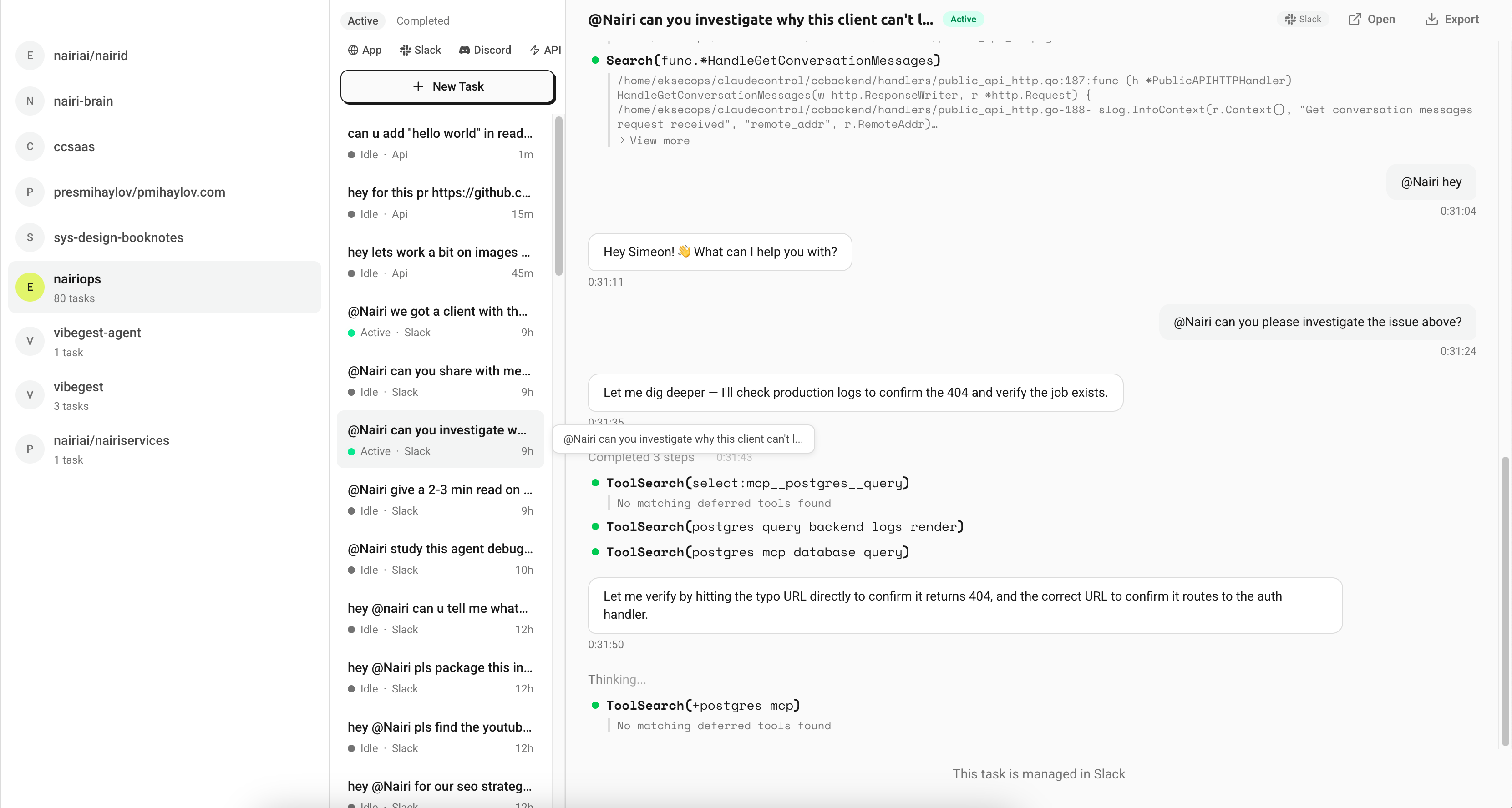
The Nairi dashboard has a built-in conversation surface called Tasks. It streams the agent's reasoning and every tool call as the agent works, and it's where every job in your org shows up, whether it was started from Slack, Discord, the API, or the web app itself.
Why use the web app
The web app is the right place to debug what your agent did. Slack and Discord show you the final answer. The Tasks page shows you the whole trace:
- Each tool the agent called (bash, file reads and writes, search, MCP tools, skills) and the arguments it used.
- The output that came back from each tool, plus errors.
- Collapsible "thinking" fragments showing the agent's chain of reasoning before it acts.
- Nested subagent invocations when one agent delegates to another.
If a run produced the wrong answer or took longer than it should have, opening it in the web app usually shows you the cause. It's also how you'll spot opportunities to tighten an agent: skills it didn't reach for, MCP tools it called more often than necessary, or instructions it misread.
Where to find it
Open the dashboard and click Tasks in the left nav, or visit /agents/tasks directly.
Tracking jobs across surfaces
Every job your org runs shows up in Tasks, no matter where it was started:
- App for jobs created from the web app's New Task button.
- Slack for jobs started by an
@Nairimention in Slack. - Discord for jobs started by an
@Nairimention in Discord. - API for jobs created via the public API.
Use the surface buttons above the task list to filter by source, and the Active / Completed toggle to switch between in-flight and finished jobs. Click an agent on the left to scope further.
Jobs from Slack, Discord, or the API are read-only in the web app. You can view the full history and the execution trace, but the composer is replaced with a link that takes you back to the original platform to continue the conversation.
Starting a new task
Click New Task in the task sidebar (or press C). A draft entry appears at the top of the list and the main pane switches to a "What would you like the agent to do?" composer. The agent the task runs against is the one currently selected in the agents strip, so pick a different agent first if you want to route it elsewhere.
Type your prompt and send (button or Cmd/Ctrl+Enter). The job is created immediately, its status flips to Queued, and the execution trace starts streaming in as soon as an agent instance picks it up.
The composer supports rich text (bold, italic, inline code, code blocks, lists, blockquotes) and file attachments. Drag files into the message area or use the paperclip icon.
Continuing a task
Pick the task from the sidebar and type a follow-up at the bottom. Press R to jump straight to the composer with the keyboard. Every reply inside the same task shares context, the same way Slack threads do.
If the task came from Slack, Discord, or the API, you can't reply from the web app. Use the Open link in the header to jump back to the origin.
Watching the execution trace
The conversation pane renders the agent's progress in expandable groups:
- While the agent is running, a "Thinking…" header appears with the most recent steps shown underneath.
- Once finished, the group collapses into a "Completed N steps" header. Click it to expand the full trace.
- Each step has a status dot: green for completed, red for errors, grey for still running.
- Tool calls show the tool name and its arguments in monospace. The output appears inline; long outputs collapse behind a View more button.
- Thinking fragments are individual collapsible items, so you can skim or dive in.
- When an agent delegates to a subagent (the
Tasktool), the nested invocation appears as its own tree underneath the parent step.
Status and refresh
Each job has a status indicator both in the sidebar (coloured dot) and in the header (pill badge):
| Status | Meaning |
|---|---|
| Queued | Waiting for an agent instance to free up. |
| Active | An agent is currently working on the task. |
| Idle | The agent finished its turn and is waiting on you. |
| Done | The task is complete. |
| Error | The job failed. |
| Abandoned | The job was cancelled or timed out. |
Active tasks poll for updates every 2 seconds; completed tasks poll every 10 seconds. You don't have to refresh, new messages and status changes appear on their own. If you've scrolled up to read earlier output, the page won't snap you back to the bottom until you choose to.
Exporting a conversation
Open a job and use the Export menu in the header to copy the conversation as JSON or download a .json file. The export contains the full message history (including all progress data: thinking, tool calls, tool outputs), the job's status, the platform it came from, and timestamps. Useful for sharing with teammates or attaching to a bug report.
Cleaning up
Tasks aren't deleted from the web app. When a job ends, it moves to the Completed tab automatically and the composer is replaced with a read-only notice. Completed jobs stay in your history indefinitely. Switch to the Completed tab any time to find them.
Keyboard shortcuts
| Key | Action |
|---|---|
C | Start a new task. |
R | Focus the message composer. |
↑ / ↓ | Move between tasks in the sidebar. |
Cmd / Ctrl + Enter | Send the message. |
Esc | Exit the new-task draft and return to the previously selected task. |
When to use the web app vs. Slack/Discord
Use the web app when:
- You want to see exactly what the agent did: every tool call, every thinking step.
- You're tuning an agent and want to spot inefficiencies in how it reasons or which tools it reaches for.
- You're attaching multiple files or working with longer outputs.
- You don't want to involve a channel of teammates in the conversation.
- You want to track every job in your org from one place, regardless of where it was started.
Use Slack or Discord when:
- You want teammates to see and react to the conversation.
- You want to mention people, post in threads, or hand off to others where they already work.
Related
Can't find what you're looking for? Email support@nairi.ai.
In Slack & Discord
Mention the Nairi bot, work inside threads, share files, and route prompts to specific agents - the same UX across Slack and Discord channels.
Via the API
Start and continue conversations with your Nairi agents from scripts, CI jobs, or your own backend. Authenticate with an API key and poll for replies.