How to deploy an agent
Walk through every setting on the agent editor: integration, model, prompt, rules, MCPs, skills, env vars, vaults, and your code repo.
This is a field-by-field walkthrough of the agent editor. Open Fleet and click New agent to follow along. Most fields are optional, so don't feel like you need to fill everything in on day one.
If you'd rather skim a top-down overview first, see the Quickstart.
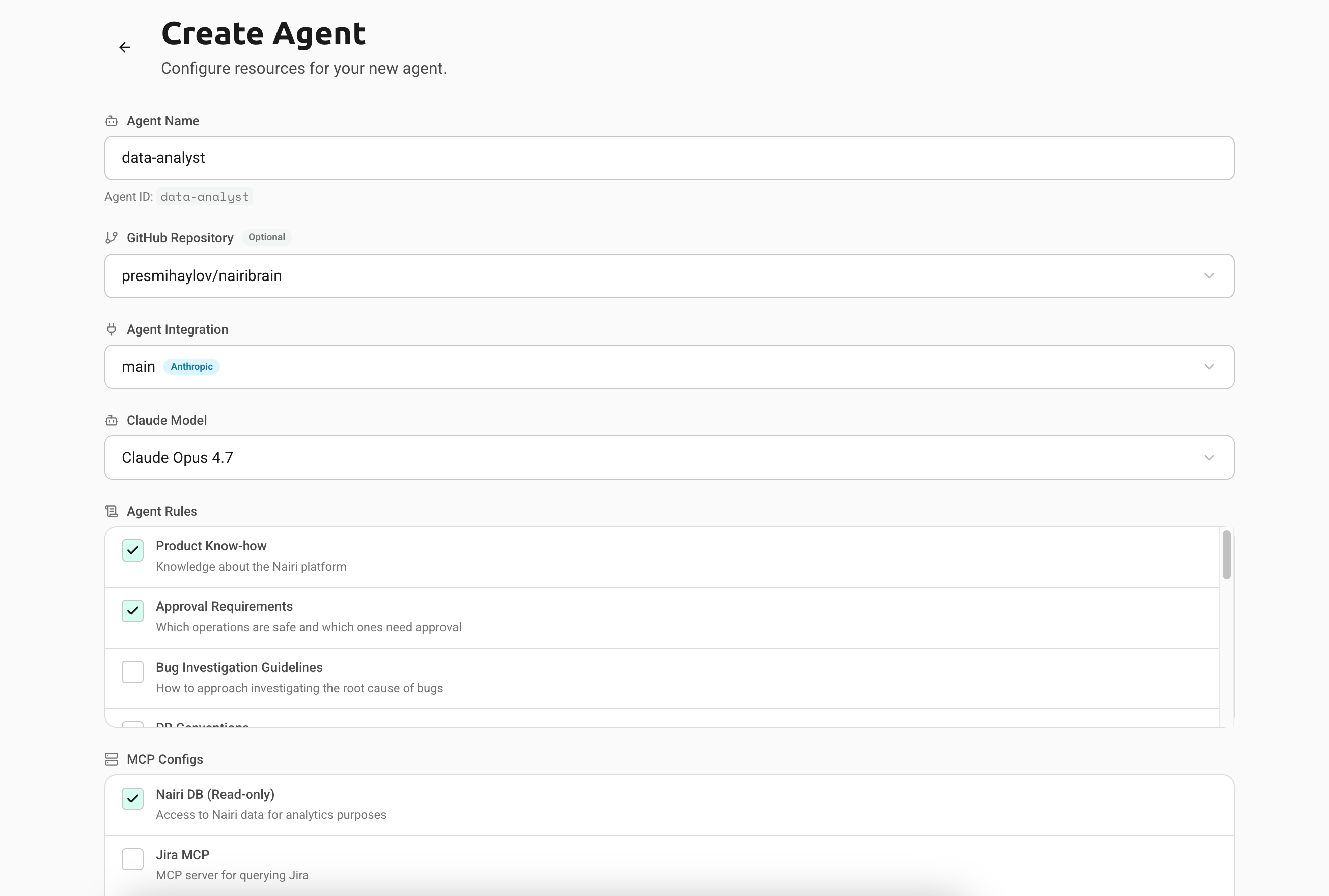
What you have to set
Only two fields are required:
- Agent Name
- Agent Integration
Everything else can be added or changed later. Creating an agent is free. You're billed when it runs a task.
Agent Name
The name is also the Agent ID that you'll use to address the agent from Slack (@<name>), Discord, and the API.
- Pick something short and unique.
- The dashboard shows the generated ID below the field as you type, e.g.
data-botfor "Data Bot". Lowercase, alphanumeric, with/,.,_,-allowed. - Up to 200 characters.
You can't rename an agent after creation, so choose something you'll be happy with.
GitHub Repository
Optional. Connect a repo when:
- You want the agent to read code, push branches, and open PRs.
- You want it to pick up
.claude/skills/,CLAUDE.md, orAGENTS.mdfrom a configuration repo.
The dropdown shows repos you've already wired up. Pick "+ Create new repository integration" to attach a new one from your GitHub install, or leave it on "No repository" if the agent doesn't need code access.
If you haven't connected GitHub yet, see Connecting GitHub.
Agent Integration
Required. This decides which agent harness (Claude Code, Codex, OpenCode) the agent runs under, and which API key pays for its tokens.
The dropdown groups options by provider:
- Nairi Platform - the free shared pool. Counts against your plan's monthly task quota. Good for trying things out.
- Anthropic - your own Anthropic API key or OAuth credit. Runs Claude Code.
- Opencode - OpenCode Zen or any OpenCode-supported provider.
- Codex - OpenAI's Codex CLI.
If you haven't connected any LLM provider yet, see Connecting your LLM provider. The Nairi Platform option is always there on managed agents.
Picking a model
After choosing the integration, a second dropdown appears with the models available for that provider:
- Anthropic → Claude Model (Sonnet, Opus, Haiku)
- Opencode → LLM Model (any provider OpenCode supports, e.g.
anthropic/claude-sonnet-4-5) - Codex → Codex Model
The Nairi Platform option doesn't show a model picker. It uses a sensible default.
Quick decision guide
| If you want… | Pick… |
|---|---|
| Best-in-class coding output | Anthropic + Claude Sonnet or Opus |
| Cheapest run | Opencode with a low-cost provider |
| OpenAI-only stack | Codex |
| Just to try Nairi | Nairi Platform (free) |
Agent Rules
Long-lived markdown instructions the agent should follow when they're relevant: project conventions, tone, security policies, code style. See Rules for the full overview.
Rules are managed at org level under Settings → Artifacts. Attach the ones you want to this agent by ticking the checkboxes in the Agent Rules section.
The description on each rule is what the agent reads to decide whether the rule applies to a given task. Keep each rule focused on one topic.
MCP Configs
MCP (Model Context Protocol) servers give the agent tools: read a database, query a CRM, fetch logs, post a message somewhere. See MCP Tools for the full overview.
Attach an MCP config to the agent by ticking it in the MCP Configs section. Configs are managed at org level under Settings → Artifacts.
Two ways to add MCPs:
- MCP Marketplace - one-click OAuth via Composio. Hundreds of SaaS tools.
- Custom MCP config - paste JSON for stdio or HTTP/SSE servers.
It's safe to inline credentials in an MCP config: the JSON is held by the mcp-proxy sidecar, not the agent. Tick Mark as sensitive when creating the config so the dashboard hides its content. See MCP Tools for the full story.
Skills
Skills are packaged capabilities the agent can invoke on demand: "send a Slack DM", "draft a Linear issue", "trigger a Vercel deploy". See Skills for the full overview.
Attach a skill by ticking it in the Skills section. Skills are managed at org level under Settings → Artifacts.
Two sources:
- Skill Marketplace - Nairi's curated catalogue.
- Custom skill - upload your own
.zipor.skillpackage.
The skill's description in SKILL.md is what the agent reads to decide when to use it. A vague description means the skill never gets invoked.
Skills that call third-party APIs almost always pair with a secret vault holding the API key. The skill reads the credential as $CCASECRET_<NAME>; the vault provides the actual value.
Secret Vaults
For API keys, tokens, database passwords, and anything else sensitive - usually consumed by a skill the agent runs.
A vault is a named bundle of secrets. Tick the checkbox to attach a vault to the agent. Vaults are managed at Settings → Artifacts.
The typical pattern: you have a skill (your own or from the Marketplace) that calls some third-party API. The skill's script reads $CCASECRET_VERCEL_API_KEY (or whichever env var name), and the vault provides the actual value. Same skill works for everyone in your org; each org plugs in its own vault.
What happens at runtime:
- The agent's process sees a placeholder like
CCASECRET_VERCEL_API_KEYin its environment. - The secret proxy swaps the placeholder for the real value only on outbound HTTPS requests to the domains you allowed.
- The plaintext value is never written to the container's filesystem.
See Vaults for setup and How Nairi manages secrets for the full security model.
Environment Variables
Non-sensitive config: feature flags, base URLs, account IDs, default branches. Plaintext key-value pairs injected directly into the agent's environment.
The Environment Variables section is a small table at the bottom of the editor:
| Key | Value |
|---|---|
GITHUB_DEFAULT_BRANCH | main |
API_BASE_URL | https://api.example.com |
The last row is always a placeholder for adding a new one. Fill in a key and value, and a new empty row appears automatically.
For anything sensitive, use a vault. Env vars are visible in plaintext in the dashboard and not domain-restricted.
System Prompt (Advanced)
Hidden inside the Advanced section at the bottom of the editor. Click to expand.
Nairi ships a default system prompt tuned for our flow (PRs, threads, tool calls). Leave it alone unless you have a reason. Custom prompts are good for:
- Pinning a persona ("You are the on-call SRE bot").
- Adding hard constraints the agent must remember every turn.
- Switching writing style for customer-facing output.
What does not belong in the system prompt:
Aim for under 500 tokens. To reset to the platform default, clear the field and save.
Save and deploy
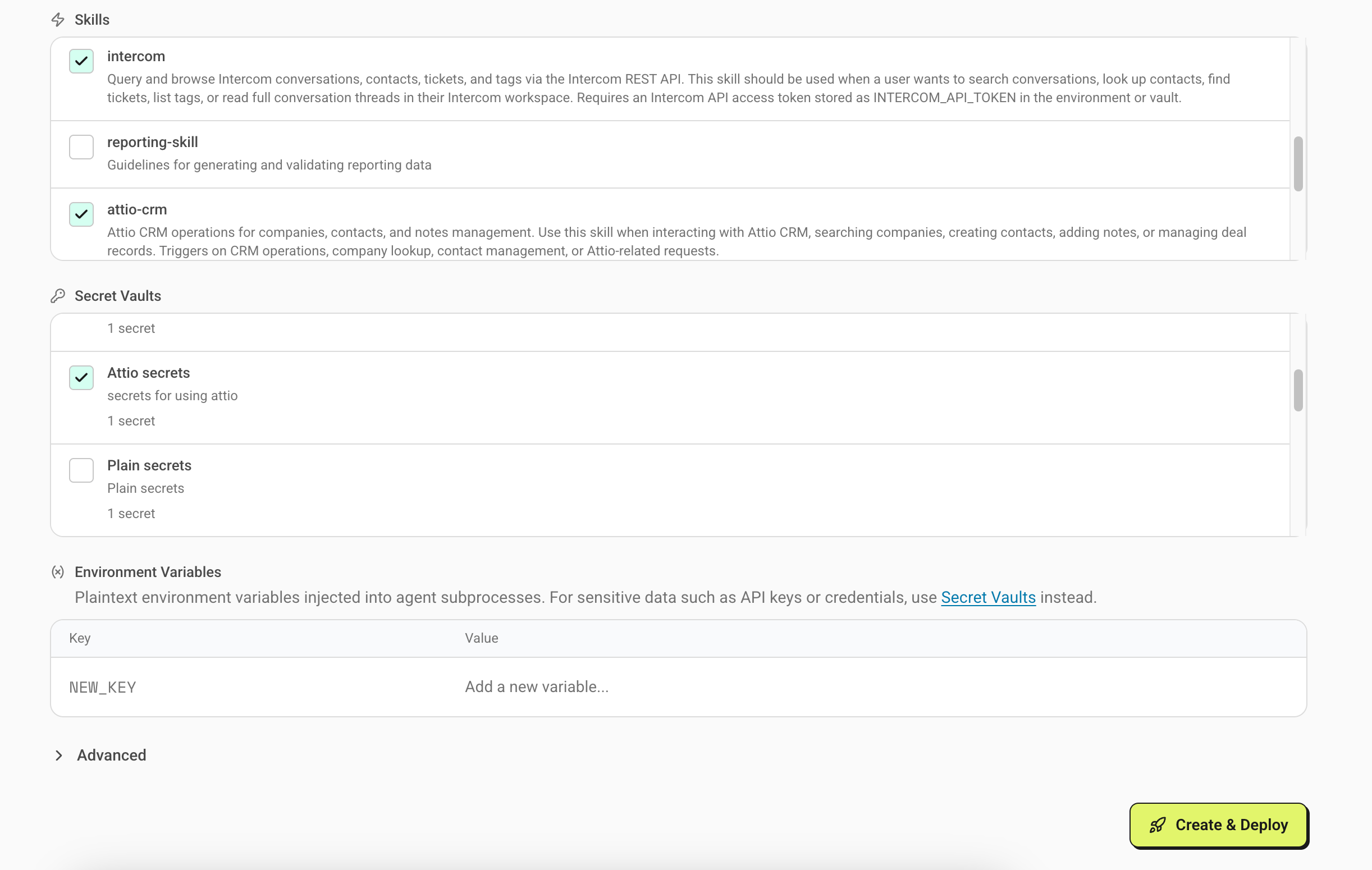
The button at the bottom-right changes depending on whether you're creating a new agent or editing an existing one:
- Create & Deploy - appears the first time, when you're saving a brand-new agent. Creates the agent and brings it online.
- Save & Redeploy - appears on existing agents. Saves the whole configuration and rolls out a fresh container. Used for any change to rules, MCPs, skills, env vars, vaults, or model.
There's also a smaller Save button next to fields like Description and System Prompt - that saves just that field with no redeploy.
For self-hosted agents, the button says Save Configuration instead. You'll need to restart nairid on your own infrastructure to pick up the new config.
Connecting to Slack or Discord
Once the agent is deployed, bind it to a channel so people can talk to it:
- Slack - run
/nairi configin the channel and pick this agent. See Configuring the agent in Slack. - Discord - mention
@Nairi configin the channel. See Configuring the agent in Discord.
The Connected Channels section in the agent editor shows which channels are routing to this agent. It's read-only here. Binding happens in Slack and Discord, not in the dashboard.
Related
Can't find what you're looking for? Email support@nairi.ai.
Connecting your LLM provider
Tell Nairi which model and provider your agents should use - Claude, Codex, or OpenCode - and supply the API key. Switch providers per agent.
Where and how your agent runs
Pick between managed and self-hosted Nairi runtimes, and understand how concurrency, container provisioning, and scaling work for each option.