Connecting Nairi to Slack
Install the Nairi Slack app, invite it to a channel, and route prompts to an agent - including threads, forwarded messages, and slash commands.
This page walks through installing the Nairi Slack app into your workspace and routing channel messages to one of your agents.
Prerequisites
- A Slack workspace where you can install apps (admin or app-management permission).
- At least one agent in your Nairi org. If you haven't created one yet, run through the Quickstart first.
Step 1 - Install the Nairi Slack app
In the dashboard, go to Settings → Integrations, click Connect, and choose Slack. You'll be redirected to Slack's OAuth screen to approve the requested scopes. Once you approve, Slack sends you back to Nairi and the workspace shows up in the Chat Platforms list with the date it was connected.
You can connect more than one Slack workspace to the same Nairi org. Each workspace appears as its own row and all of them share the same fleet of agents.
Step 2 - Invite the bot to a channel
In Slack, open the channel you want the agent to listen in and run:
/invite @NairiStep 3 - Send your first prompt
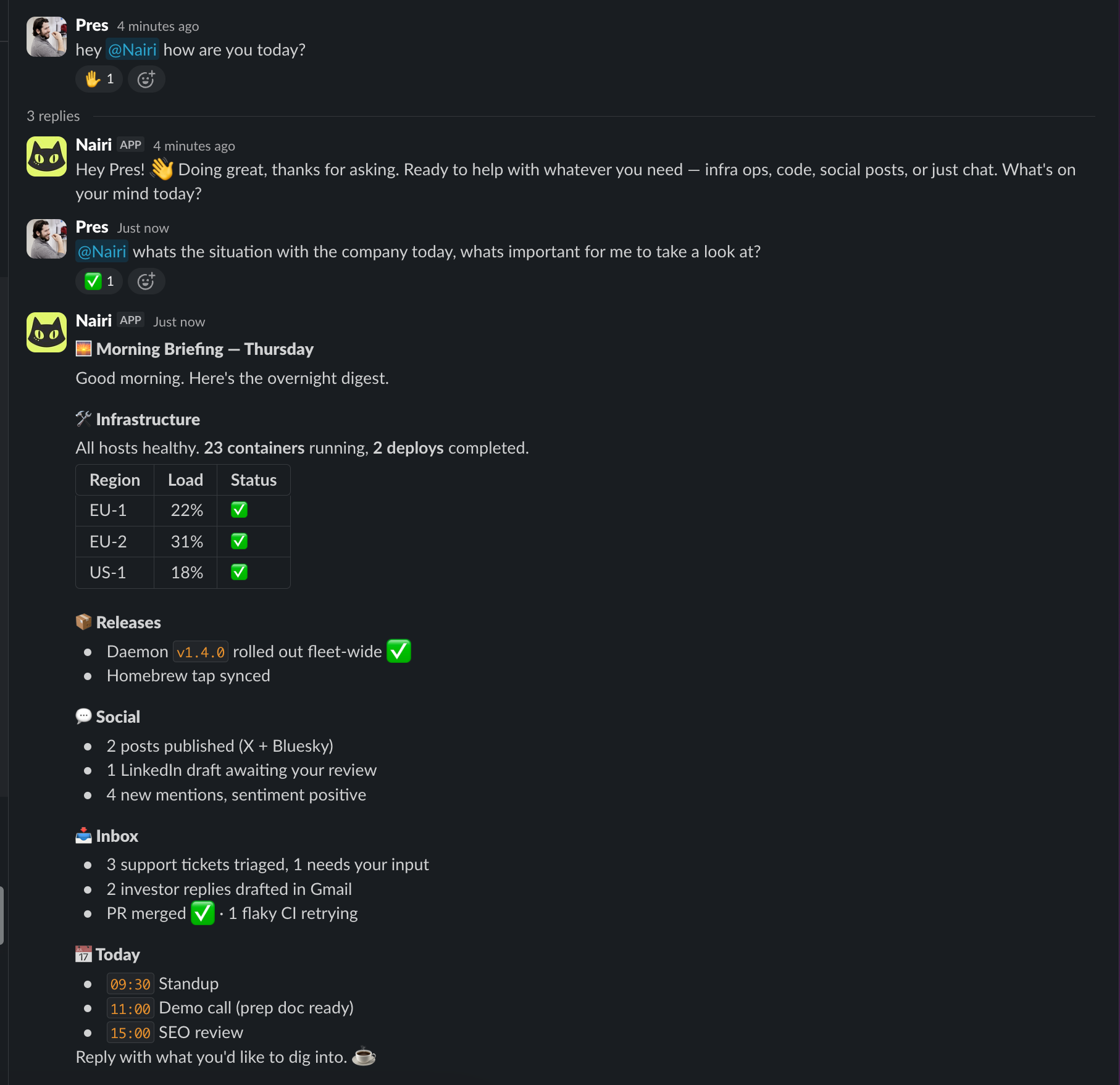
Mention the bot at the start of a message:
@Nairi summarise yesterday's incidents and post a TL;DRThe first time you @-mention Nairi in a new channel, two things happen automatically:
- The channel is connected and bound to the first active agent in your org.
- The bot posts a confirmation in the thread naming that agent and showing the
/nairicommand to change it.
You don't register channels anywhere in the dashboard. Channels self-register on first use.
Step 4 - Change which agent answers (optional)
Channel-to-agent bindings live entirely inside Slack and are managed with the /nairi slash command. Type /nairi in any channel where the bot is invited and Slack shows the full command list inline:
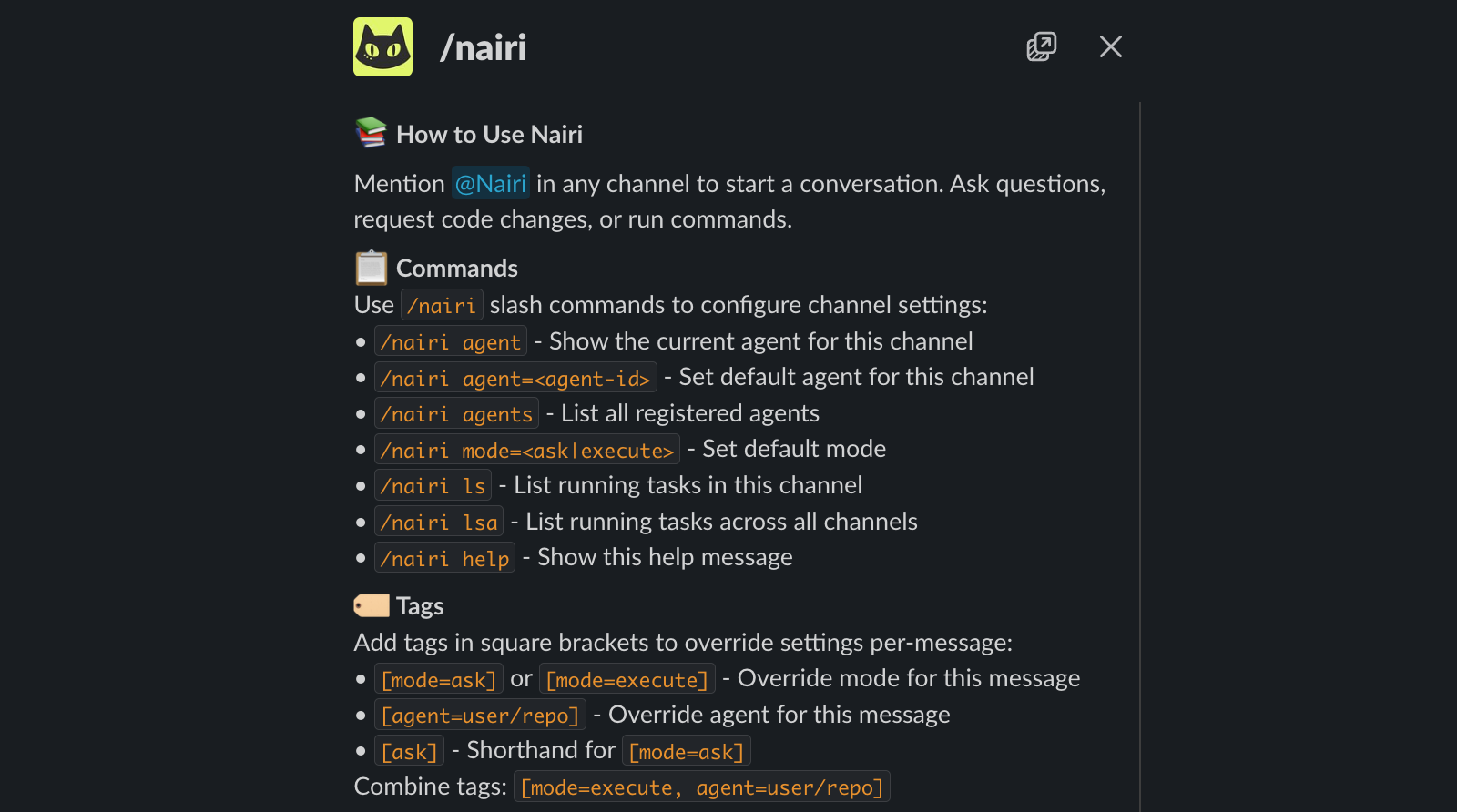
A few useful starters:
/nairi agents              # list every agent in your org and copy its ID
/nairi agent               # show the agent currently bound to this channel
/nairi agent=ag_…          # bind the channel to a different agent
A channel is bound to one agent at a time. One agent can be the default in many channels.
See Configure in Slack for the full slash-command reference, including how to switch between ask and execute modes and list active tasks.
Status emojis on your message
The bot reacts to your message with emoji that track the task's state. You don't need to do anything; they update as the job moves through its lifecycle:
| Reaction | Meaning |
|---|---|
⏳ :hourglass: | The message is queued, waiting for an agent slot. |
👀 :eyes: | An agent has picked it up and is working on it. |
✋ :hand: | The agent posted a reply and is waiting for your next message in the thread. |
✅ :white_check_mark: | The task is done. |
❌ :x: | The task failed. |
Adding a ✅ reaction yourself to one of the bot's messages marks the job as completed early. Useful when you've got what you needed and want to free up the agent slot without waiting for a final reply.
File attachments
Attachments work in both directions:
- To the agent: upload files alongside your prompt. The bot reads them as part of the input - useful for screenshots, logs, CSVs, or any file you want the agent to look at.
- From the agent: when a task produces a file, the bot posts it back into the thread.
Concurrency and queueing
The number of tasks an agent can run in parallel is governed by its instance count. If a new message arrives while every instance is busy:
- The bot reacts with
⏳instead of👀. - The task waits in the queue.
- As soon as an instance frees up, the queued task starts and the reaction switches to
👀.
No tasks are dropped. See Where and how your agent runs for tuning instance count.
Scopes Nairi requests (and why)
| Scope | Why |
|---|---|
channels:history, groups:history | Read messages in public and private channels the bot is invited to, so the agent sees your prompt and any follow-ups in the thread. |
channels:read, groups:read | Look up channel and member info when posting threaded replies. |
chat:write | Post replies in channels and threads. |
commands | Register the /nairi slash command. |
reactions:read, reactions:write | Drive the status reactions on your messages and read the ✅ confirmation reactions back. |
files:read, files:write | Read attachments you upload alongside a prompt, and post files back. |
users:read, users:read.email | Identify which user sent each prompt for per-user attribution. |
team:read | Identify the workspace at install time. |
Nairi only sees messages in channels where the bot has been invited. Private channels need an explicit invite the same way public ones do.
Routing multiple channels to one agent
One agent can be the default in many Slack channels. Each channel message starts its own task, and the agent's instance count (1–10, set on the agent itself) caps how many of those tasks run in parallel. See Where and how your agent runs for tuning guidance.
Removing the integration
To disconnect a Slack workspace from Nairi:
- Settings → Integrations, hover the workspace row, click the unplug icon, and confirm.
- Optionally, also remove the app from Slack itself: Workspace settings → Manage apps → Nairi → Remove app. Step 1 alone is enough to stop Nairi processing future events; leaving the app installed in Slack is harmless.
Past tasks remain visible in the Nairi dashboard. Future @-mentions in the disconnected workspace are ignored.
Related
- Configure in Slack - slash commands, modes, and per-channel settings.
- In Slack & Discord - how to chat with the agent once installed.
- Connecting Nairi to Discord - same workflow for Discord servers.
Can't find what you're looking for? Email support@nairi.ai.
Plans & pricing at a glance
What each Nairi tier includes, how token usage is metered against your LLM provider, and how billing and seat allocation work across your team.
Connecting Nairi to Discord
Install the Nairi Discord bot, route channel messages to an agent, watch tasks unfold in threads, and connect multiple servers to a single org.